PHP Installation
There are basically two ways to set up PHP on a local machine which are:
- Manually install all the required packages (MySQL, PHP & Apache) and configure them.
- AMP (Apache, MySQL, PHP) software stack.
We will suggest you install AMP (Apache, MySQL, PHP) software stack. It is available for all operating systems.
There are many AMP options available in the market that are given below:
- WAMP for Windows
- LAMP for Linux
- MAMP for Mac
- SAMP for Solaris
- FAMP for FreeBSD
- XAMPP (Cross, Apache, MySQL, PHP, Perl) for Cross Platform: It includes some other components too such as FileZilla, OpenSSL, Webalizer, Mercury Mail, etc.
In this tutorial, we are going to cover an easy and almost error-free method to install PHP on a local machine which is by using all-in-one package called XAMPP.
Install XAMPP server on window
We will learn how to install the XAMPP server on the Windows platform step by step.
Follow the below steps and install the XAMPP server on your system.
STEP 1: Click on the below link and go to the download page.
link: https://www.apachefriends.org/download.html
STEP2: Download the XAMPP server according to your window requirement.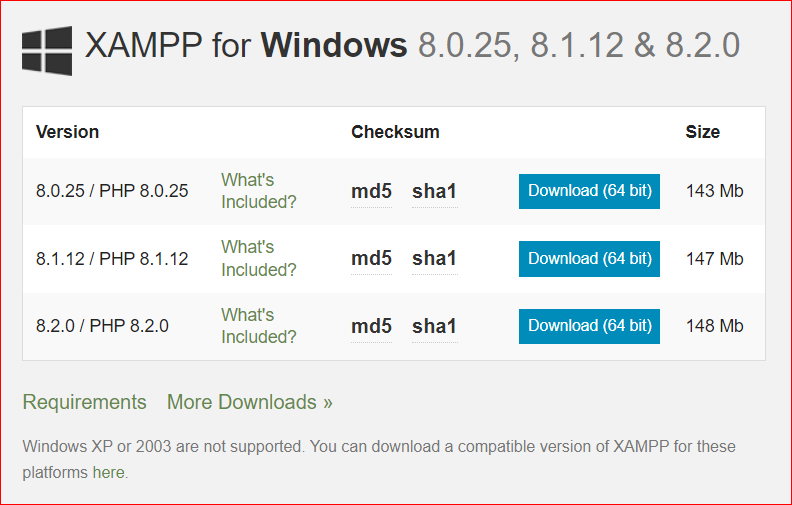
Now click on the downloaded file and install it on your machine.

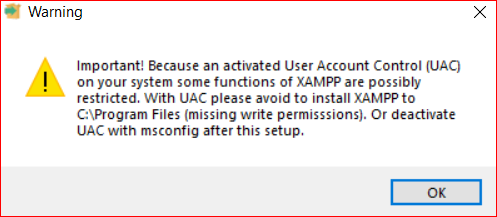


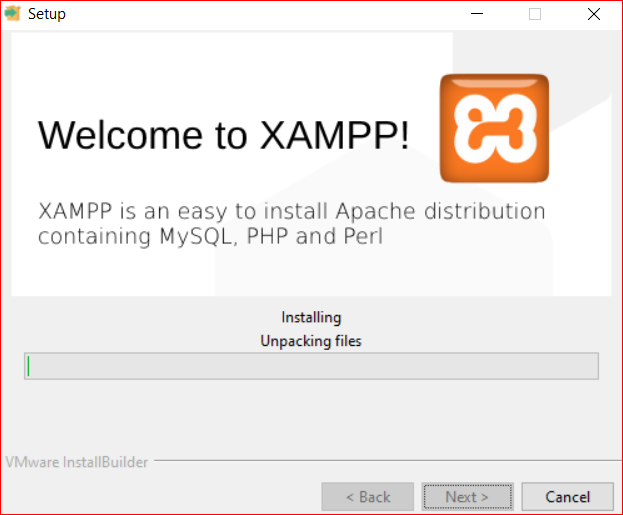
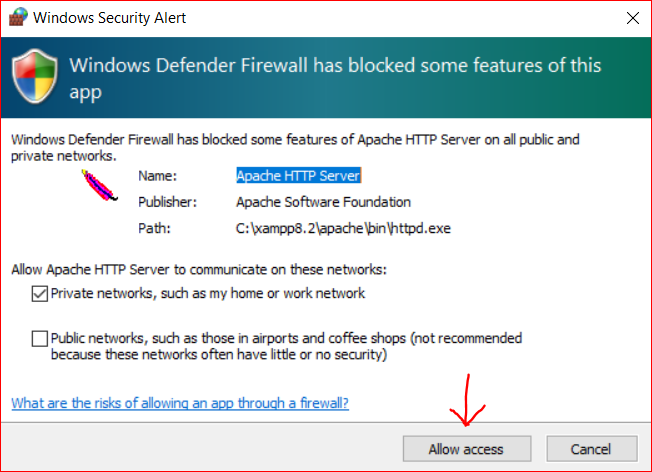

Start and Test Xampp Server
After Successfully installing Xampp, open it and start.

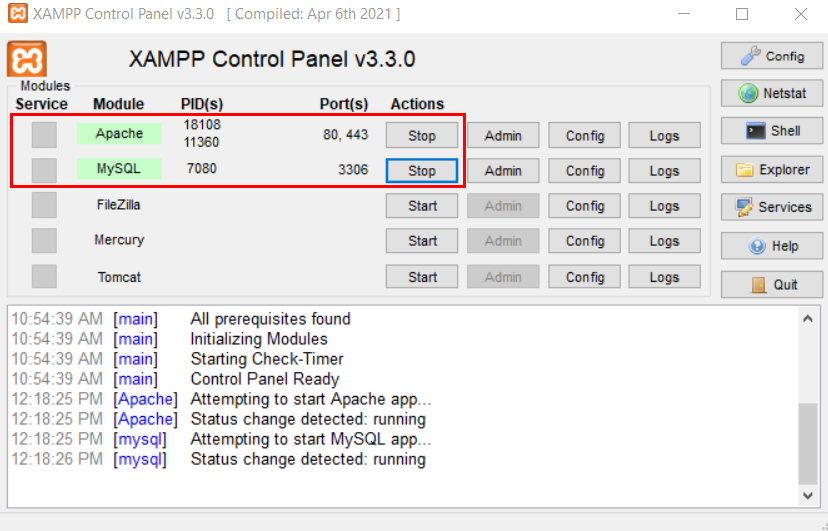
Now the time is to test Xampp and PHP.
Go to your Xampp's installed drive and then go to htdocs directory(folder) because the Xampp server runs those PHP files which are placed in htdocs directory.
I installed Xampp Server in C Drive, So, the path for the htdocs directory will be "C:\xampp\htdocs". And create one file test.php.

Now open test.php file in Notepad or any other text editor and write the below code for testing purposes.
<?phpecho "Hello Vaidikalaya";?>

Now open your browser and type: localhost/test.php
